Integration docs
Offerwall Integration
Integration Overview
The RevU offerwall is a marketplace where users complete reward-based actions, such as surveys, app installs, and sign-ups, in exchange for virtual currency in your app. Integration can be completed in three primary steps:
Create a Publisher Account: Set up your placement in the portal to generate a unique Offerwall ID.
Create an Entry Point: Implement a button or link in your app that opens the offerwall for the user.
Set up Postbacks: Configure Server-to-Server (S2S) notifications to automatically reward users upon offer completion.
Step 1: Generating Your URL
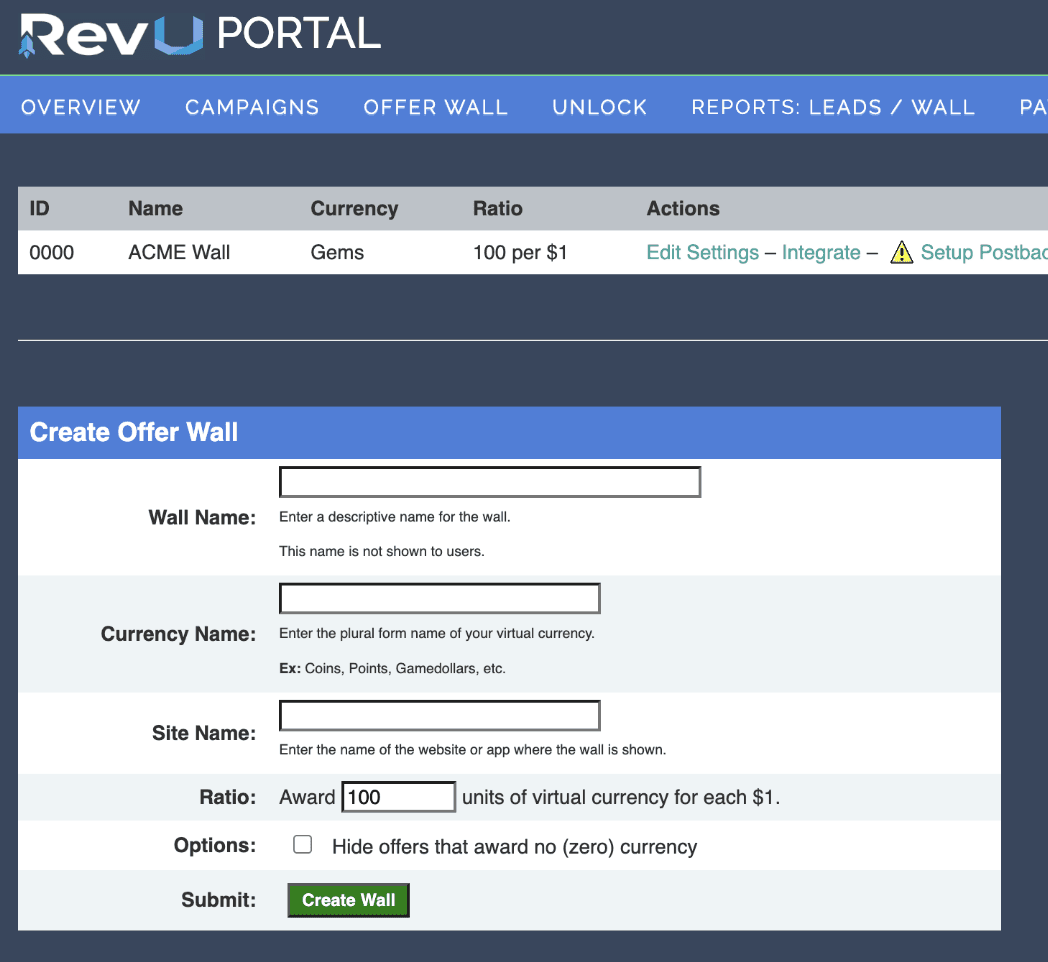
Before writing code, you must use the self-guided setup process in the RevU portal to create an offerwall placement.
Access the Portal: log in and open the Offerwall tab.
Create a New Wall: Fill out the creation form to define your currency name and reward ratio.
Note your Offerwall ID: Once created, your unique ID will appear in the leftmost column of the dashboard.
Step 2: Create a Button that Opens RevU in your product
Launching the RevU offerwall is a straightforward process accomplished with a simple URL redirect. This method requires minimal engineering effort and allows you to quickly start monetizing your application or website.
Required Data Points
To generate your unique RevU offerwall URL, you only need the following two data points:
Offerwall ID: This is a unique identifier tied to your specific offerwall placement. You can find this ID in the RevU Portal under the Offerwall tab; it is displayed in the leftmost column once you have created a new wall.
User ID: This is a unique identifier from your system for the end-user (e.g., a username or database ID). This allows RevU to track which user completed an offer so the correct account can be credited.
To launch the wall, you simply need to redirect the user to a URL with the following structure: https://wall.revenueuniverse.com/[Offerwall ID]/offers/[User ID] The User ID is a unique identifier from your system used to track that specific user's progress.
Redirect Best Practices
For the most reliable performance and user experience, follow these integration guidelines:
Use External Browsers (Recommended): It is highly recommended to open the RevU offerwall in the user's external system browser (e.g., Safari or Chrome) rather than inside a WebView or iFrame. This ensures that all browser-based offers are tracked properly and allows users to keep the window open to continue earning currency even when they are not actively in your game or app.
Handling WebViews or iFrames: If you choose to use a WebView or iFrame for the initial wall, you must ensure that individual offer clicks still open in an external browser. Specifically, you should configure your app to detect redirects through
https://publishers.revenueuniverse.com/click.phpand open those URLs in the device's default browser.Desktop Considerations: If embedding via an iFrame on a desktop site, it is recommended to make the iFrame responsive or at least 1000 pixels high to ensure users can see an adequate number of offers upon loading.
Step 3: Postback Configuration (Server-to-Server)
Postbacks allow RevU to notify your system instantly and reliably when a user completes an offer. This form allows you to set up postbacks (also known as closed loop, S2S, server pixel, callback, etc). This system supports regular postbacks (for offers you run directly), as well as offerwall postbacks, which include virtual currency information.We will post information to the URL via GET variables. You must specify the desired variables and the order in which they should be posted.
Example URL: https://www.mysite.com/myscript.php?campaign=$campaign$&userid=$sid$&status=$status$
Consult your script vendor or other personnel for assistance. SID, SID3 , SID 5 and SID 6 are limited to 200 characters. SID2/UID is limited to 255 characters.
IMPORTANT: If you are setting up a postback for a specific offer wall (virtual currency), don't forget to select a deployment from the list before adding the URL.
Variables for All Postback Types
$campaign$: The campaign ID number of the offer being posted.
$name$: The name of the offer being posted.
$rate$: The commission earned (i.e, 5.75). If the offer is being reversed, this will be a negative number (i.e, -5.75).
$status$: This will be either 1 or 2, for completed or reversed, respectively.
$actionid$: The network action ID for this lead.
$ip$: The IP address recorded when the user clicked the offer.
$timestamp$: UNIX timestamp (UTC) of the conversion.
$useragent$: Browser user agent used when clicking the offer.
$tag$: Campaign tag value.
$country$: Country code of user, ISO 3166-1 alpha-2 format.
$clicktimestamp$: UNIX timestamp (UTC) of the click.
$sid$: The SID that you passed to the campaign.
$sid3$: Additional SID parameter #3.
$sid5$: Additional SID parameter #5.
$sid6$: Additional SID parameter #6.
For Offer Wall Only
$sid$: A string that includes your wall ID, ex. “SFB_1234___” where “1234” is the wall ID
$currency$: The amount of virtual currency issued. This may be a negative number, indicating a currency revocation (if you opt to pass these along).
$currencytype$: May be one of the following values:
1 – Offer completed
2 – Currency issued by customer service
3 – Offer reversed (currency revocation – currency will have a negative value)
For Offerwall and Unlock Deployment
$uid$: The user's unique identifier, which you will give to us when loading the IFRAME
$offertype$: May be one of the following values:
0 – Undefined
1 – Free
2 – Purchase
3 – Trial
4 – Other
5 – Mobile Apps
6 – Clicks and Videos
7 – Studies
8 – Contest
Variables For Non-Wall (API) Traffic Only
$sid$: The SID that you passed to the campaign.
$sid4$: see below
- Direct Correlation: The $sid4$ placeholder receives the exact sid4 value from the API response, enabling accurate attribution of tier-specific conversions within multi-reward campaigns.
- Empty Value Handling: The sid4 parameter may contain an empty string, which constitutes a valid event identifier. Your postback processing logic must recognize empty sid4 values as legitimate tier completion events, not as data omissions or system errors.
- Uniqueness Constraints: The sid4 value maintains uniqueness only within the scope of its associated campaign. To ensure system-wide uniqueness, combine the sid4 value with the $campaign$ identifier in your tracking implementation to prevent identifier conflicts across different campaigns.
Unlock Traffic Only
$cost$: Cost
$sku$: SKU
$credittype$: May be one of the following values:
1 - Offer completed
2 - Credit issued by customer service
3 - Offer reversed
4 - Credit revoked by customer service
Postback Security
HTTPS URLs are now fully supported, and these posts will be made securely to your server.
All posts may originate from one of the RevU's secure IP addresses. Please see your Account Manager for a list of the IP addresses. Please configure your postback to only accept posts from these IPs.
Postback Rules
Postback URLs may be disabled by yourself, or at our discretion (malformed or malicious URL, excessive errors, etc.). Please correct any known problems, then click the "Enable" link next to the URL to begin receiving posts again.
Timeout/Error Policy: Our server must be able to connect in 4 seconds or less, and complete the post in 4 seconds or less, for a total of 8 seconds per post. We will attempt to complete the postback every 10 minutes no more than 6 times; our system will then delete that particular postback. You will receive e-mails in case any of these events occur.
Response Body: If the response body consists of the single word FAIL, FAILED, or FAILURE (case insensitive), the postback will be considered in error and retried as per the policy above.
Step 4: Testing Postback
In your portal in the “Configure Postbacks” section, there is an area to test postbacks without completing an offer to ensure your setup is working. You will see the following display:
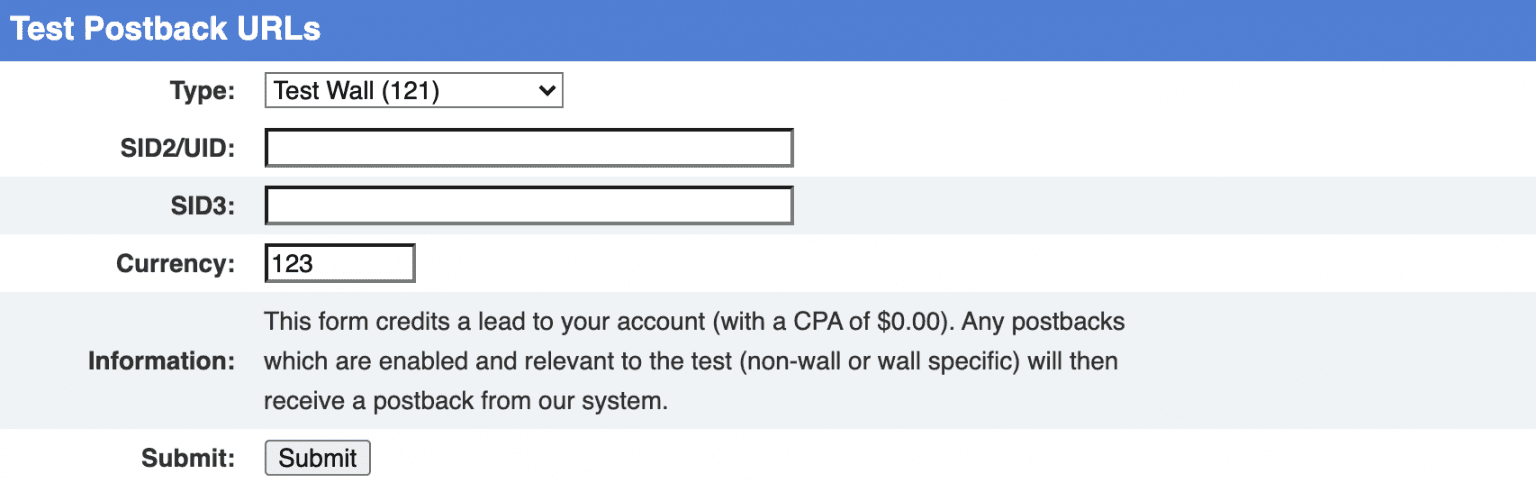
Select the offerwall you’d like to test. Then, ensure you enter the userID in the SID2/UID field. The SID3 field is optional and not required, but may be used to pass back more information. Enter the currency amount you’d like to award, and hit submit, and a postback will be submitted to your system so you can verify it is working properly.